Set up the app on Android
In seven steps your booking panel sits on the home screen as an app, and notifications about new bookings are switched on. You only tap where the pink marker is.
-
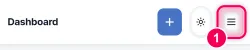
Open the menu. At the top right, open the menu (the three lines ☰).
-
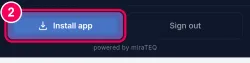
Tap „Install app“. At the very bottom of the menu is the button „Install app“. Tap it.
→ A small window appears.
-
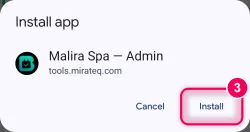
Tap „Install“. The window shows the name of your app. Tap „Install“ at the bottom right.
→ The icon is now on your home screen. From now on always open the app from there, no longer through the browser.
-
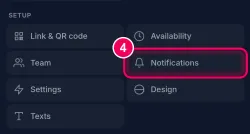
Open „Notifications“. Open the menu ☰ again and tap „Notifications“.
-
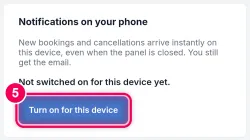
Switch on. Tap the button „Turn on for this device“.
-
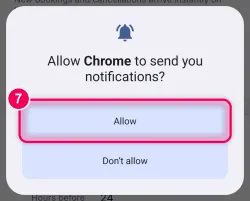
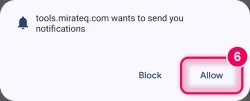
Tap „Allow“. The browser asks whether the app may send you messages. Tap „Allow“.
-
Tap „Allow“ once more. Right after that your phone asks the same again, for the browser. Tap „Allow“ again.
→ Done. New bookings and cancellations now arrive on your phone straight away.