Add the app to your iPhone
In twelve steps your booking panel sits on the home screen like a real app, and notifications about new bookings are switched on. You only tap where the pink marker is.
-
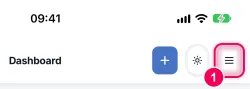
Open the menu. At the top right, open the menu (the three lines ☰).
-
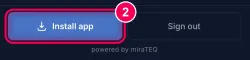
Tap „Install app“. At the very bottom of the menu is the button „Install app“. Tap it.
→ A short note appears.
-
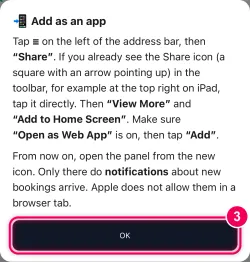
Tap „OK“. Read the note and tap „OK“. The next step shows where Safari keeps „Share“.
-
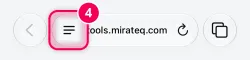
Open the page menu. At the bottom left of the address bar, tap the ≡ symbol.
→ A menu opens.
-
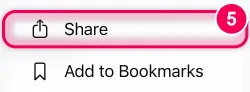
Tap „Share“. „Share“ is at the very top of the menu. Tap it.
→ The share window opens.
-
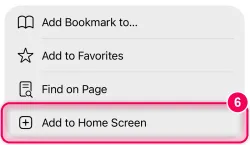
Tap „Add to Home Screen“. Tap „View More“ or pull the window up. In the list below, tap „Add to Home Screen“.
→ A window for adding it opens.
-
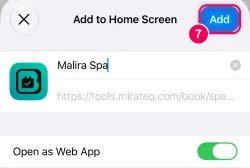
Tap „Add“. The name is already filled in and the „Open as Web App“ switch is on. Leave it that way and tap „Add“ at the top right.
→ The app is now on your home screen.
-
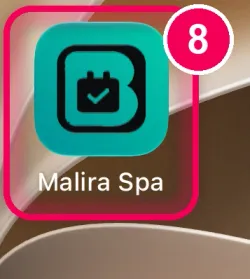
Open the app. On your home screen, tap the new icon. From now on always open the app from there, no longer through Safari.
-
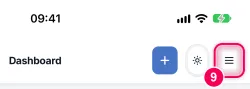
Open the menu. In the app, open the menu ☰ at the top right again.
-
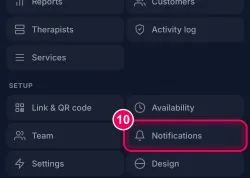
Tap „Notifications“. In the menu, tap „Notifications“.
-
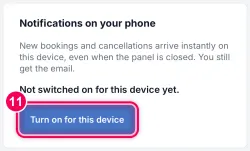
Switch on. Tap the button „Turn on for this device“.
-
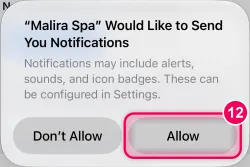
Tap „Allow“. Your iPhone asks briefly. Tap „Allow“.
→ Done. New bookings and cancellations now arrive on your iPhone straight away.