Add the app to your Mac
In nine steps your booking panel sits in the Dock as its own app, and notifications about new bookings are switched on. You only click where the pink marker is.
-
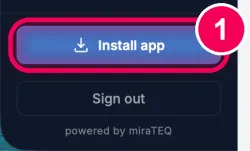
Click „Install app“. At the very bottom of the sidebar is the button „Install app“. Click it.
→ A short note appears.
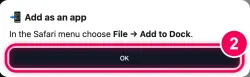
-
Click „OK“. The note tells you the next step: the File menu. Click „OK“.
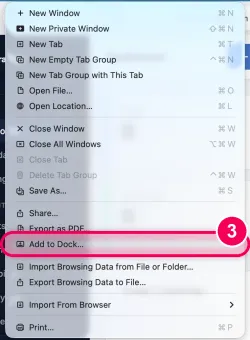
-
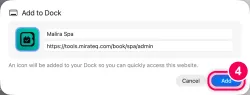
File → „Add to Dock“. At the top in the menu bar, open File and click „Add to Dock …“.
→ A small window opens.
-
Confirm with „Add“. The name is already filled in. Click „Add“.
→ The app is now in your Dock.
-
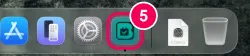
Open the app. In the Dock, click the new icon. From now on always open the app from there, not through Safari.
-
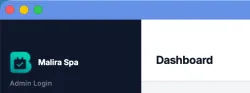
The app runs on its own. The panel now opens in its own window like a normal program, without a browser bar.
-
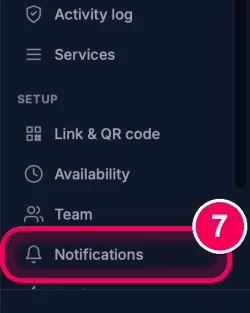
Open „Notifications“. In the sidebar, click „Notifications“.
-
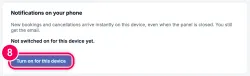
Switch on. Click the button „Turn on for this device“.
→ A short question appears at the top right.
-
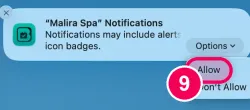
Click „Allow“. Move the mouse onto the question, click „Options“ and then „Allow“.
→ Done. New bookings and cancellations now arrive on your Mac straight away.