

Put the ordering app on your Android phone
Nine steps and your ordering panel sits on your home screen as an app of its own, with new orders arriving straight away. You only ever tap where the pink marker is.
-
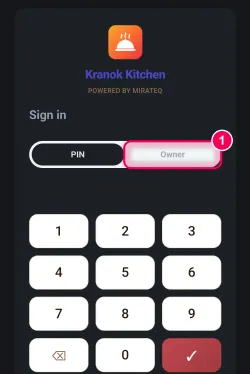
Switch to “Owner”. Sign-in starts on the PIN keypad your staff use. Tap “Owner” at the top.
→ The keypad is replaced by a password field.
-
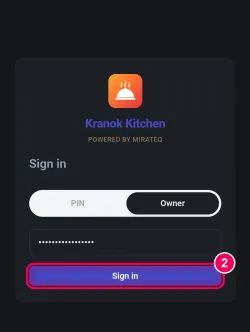
Enter your password and sign in. Type your owner password and tap “Sign in”.
→ Your panel opens.
-
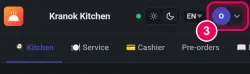
Tap your name, top right. Tap your name in the top right corner.
→ A small menu opens.
-
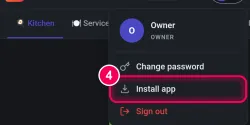
Tap “Install app”. In the menu, tap “Install app”.
→ Chrome shows a small window.
-
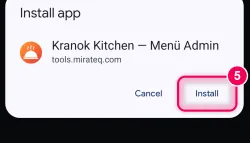
Confirm with “Install”. The window shows the name of your venue. Tap “Install”.
→ The app now sits on your home screen. That is where you open it from now on.
-
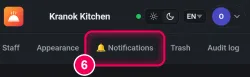
Open “Notifications”. In the tab bar at the top, tap “🔔 Notifications”.
-
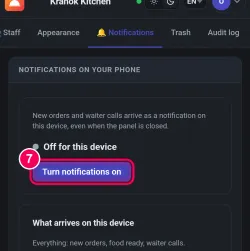
Switch it on. Tap the “Turn notifications on” button.
→ Chrome asks you right away.
-
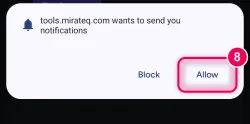
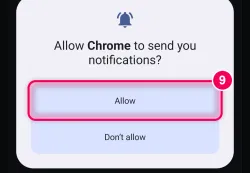
Tap “Allow”. Chrome asks whether the site may send you notifications. Tap “Allow”.
-
Tap “Allow” again. Android then asks the same thing for Chrome itself. Tap “Allow” once more. This second question only appears the first time on a device.
→ Done. New orders and waiter calls now reach this phone straight away, even when the panel is closed.
That’s it.