

Set up email on your iPhone
In eight steps your business mailbox is in the Mail app. It takes about two minutes. You only ever tap where the pink marker is.
-
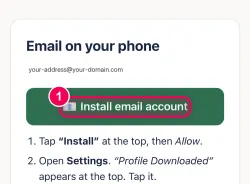
Tap the green button. Open the link we sent you and tap “Install email account”. Safari then asks the next question.
-
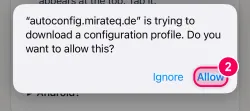
Tap “Allow”. Safari asks whether the page may load a profile. Tap “Allow”.
-
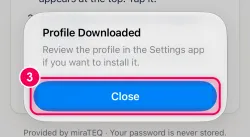
Tap “Close”. “Profile Downloaded” appears briefly. Tap “Close”. You continue in Settings.
-
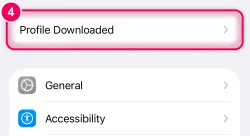
Open Settings, tap “Profile Downloaded” at the top. Open the Settings app (grey gear). At the very top there is now a new entry “Profile Downloaded”. Tap it.
-
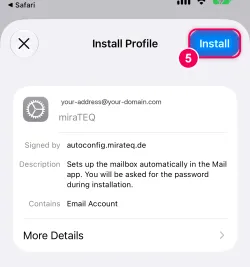
Tap “Install” at the top right. On the profile page, tap “Install” at the top right.
→ If your iPhone has a passcode, it asks for it now. Enter the code you use to unlock your iPhone — not the email password.
-
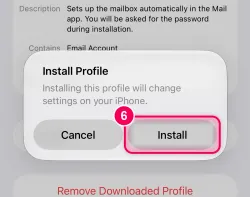
Tap “Install” again. Apple points out that settings will be changed. That is normal. Tap “Install”.
-
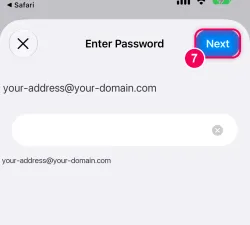
Enter the mailbox password, then “Next”. Enter the password of your email mailbox (not the iPhone code) and tap “Next” at the top right.
-
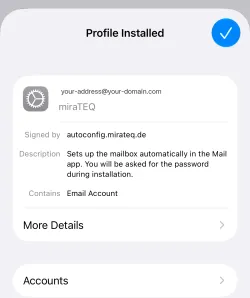
Done. “Profile Installed” appears with a blue check mark. Your mailbox is now in the Mail app. Open it, and your emails are there.
Want to remove the account again? Settings › General › VPN & Device Management › select the profile › Remove Profile.