Install the app on your computer
In six steps your booking panel sits among your programs as its own app, and notifications about new bookings are switched on. You only click where the pink marker is.
-
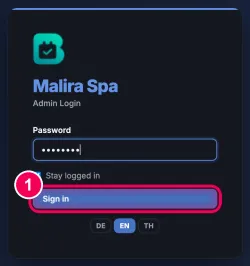
Sign in. Open the link we sent you, enter your password and click „Sign in“.
→ Your panel opens.
-
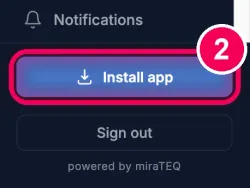
Click „Install app“. At the bottom left of the sidebar, click the button „Install app“.
→ The browser shows a small window straight away.
-
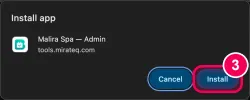
Confirm with „Install“. The window shows the name of the app. Click „Install“.
→ The app opens in its own window and now sits among your programs, in the Dock (Mac) or the taskbar (Windows). Open it from there from now on.
-
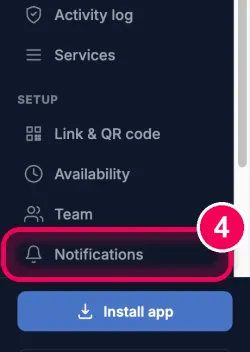
Open „Notifications“. In the sidebar, click „Notifications“.
-
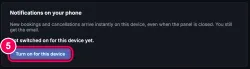
Switch on. Click the button „Turn on for this device“.
→ The browser now asks at the top.
-
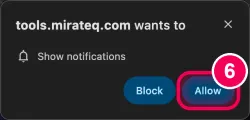
Click „Allow“. At the top, the browser asks whether the app may send notifications. Click „Allow“.
→ Done. New bookings and cancellations now arrive on your computer straight away.