

Set up email in Thunderbird
In five steps your business mailbox is in Thunderbird. It takes about two minutes. You only ever click where the pink marker is.
-
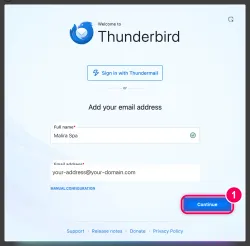
Enter your name and email address. On its first start Thunderbird asks for your name and your email address. The name is what your recipients will see. Then click “Continue”.
→ Thunderbird now looks up the right settings by itself.
-
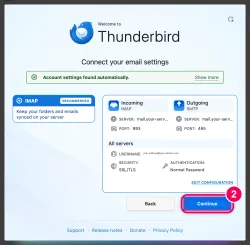
Click “Continue”. Thunderbird shows what it found: IMAP, encrypted via SSL/TLS. That is exactly right. Click “Continue”.
→ IMAP means your email stays on the server and looks the same on every device.
-
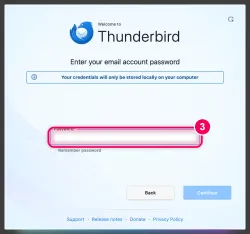
Enter your mailbox password. Enter the password of your email mailbox and click “Continue”.
→ Thunderbird now signs in to the server. If the password is wrong, it says so right away.
-
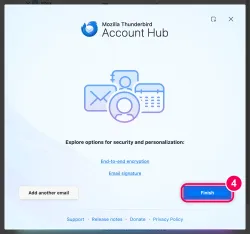
Click “Finish”. The account is set up. Thunderbird also offers encryption and a signature — you can do that later. Click “Finish”.
-
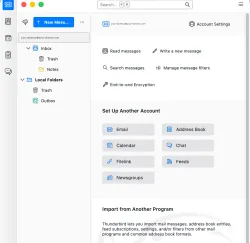
Your mailbox is there. Your email address now appears on the left with its Inbox. Your messages are being downloaded.
Want to remove the account again? Tools › Account Settings › Account Actions › Remove Account.